
Click to see your device settings:
iPhone or iPad Settings
- Check the Operating System is up-to-date.
- Go to Settings > General > Software Update to ensure the device is running the latest update.
- The device must be running at least iOS 13.1
- Set the default web browser. Safari and Google Chrome work best.
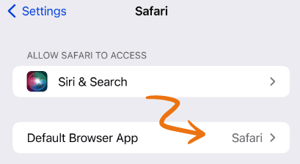
- Safari.
- Go to Settings > Safari > Default Browser App.
- Set the Default Browser App to Safari.
- Google Chrome.
- Safari.
-
-
- Go to the App Store and download Google Chrome, if not already installed.
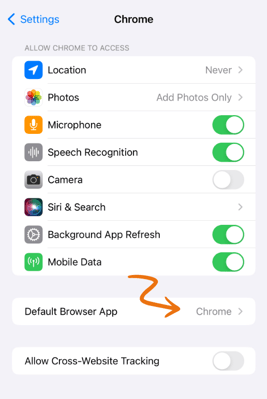
- Go to Settings > Chrome > Default Browser App.
- Set the Default Browser App to Chrome.
-
- Allow Pop-Ups.
- Safari.
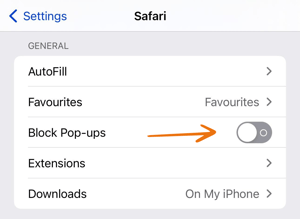
- Go to Settings > Safari.
- Turn Block Pop-Ups off.
- Safari.
-
- Google Chrome.
-
-
- Open the Chrome App.
- Tap more options
 and select Settings.
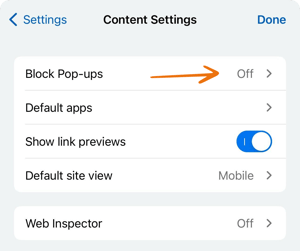
 - Select Content Settings.
- Set Block Pop-ups to Off.
-
Android Mobile or Tablet Settings
- Check the Operating System is up-to-date.
- Go to Settings > Software to ensure the device is running the latest update.
- The device must be running at least Android 7.1
- Set the default web browser. Chrome works best.
- Go to Google Play and download Chrome, if not already installed.
- Go to Settings > Apps > Chrome.
- Select Set as Default
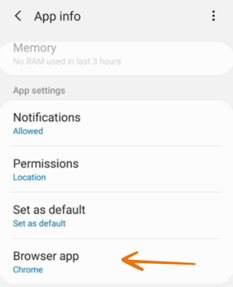
Samsung devices defaults to Samsung Internet. This is not compatible with the Safe Ag Systems App.3. Allow Pop-Ups
-
- Open the Chrome App.
- Tap the menu in the upper right hand corner and select Settings.
- Go to Advanced Settings > Site Settings > Pop-ups and redirects.
- Set to Allowed.
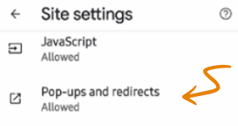
If the default browser is not Google Chrome, you will need to allow Pop-Ups in the Browser Settings.