
Note: Your Access Level may restrict the use of some features.
This feature is not available on Standard subscriptions.
A File or Link needs to be linked before it will appear in the Files & Links option on the Inventory item. See Attaching Files and Links to Inventory.
- Open the inventory item:
- Tap main menu
 Inventory > Machinery & Equipment/Structures/Tools/Chemicals and tap on the inventory item, or
 - Tap QR Code
 and scan the Item's QR code.
- Tap main menu
- Tap Files & Links and tap the File or Link name to open.
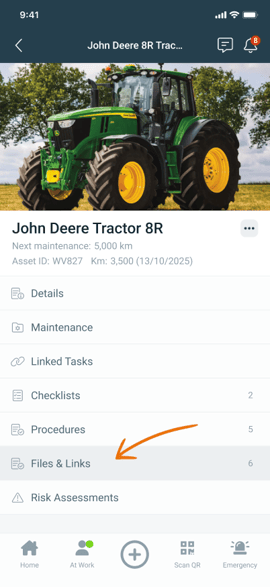
- A file will download and open in a separate tab (connectivity required).
- A Link will open in a separate tab (connectivity required).