Note: Your Access Level may restrict the use of some features.
For Desktop, see Linking Tasks to Inventory.
This guide will show how to:
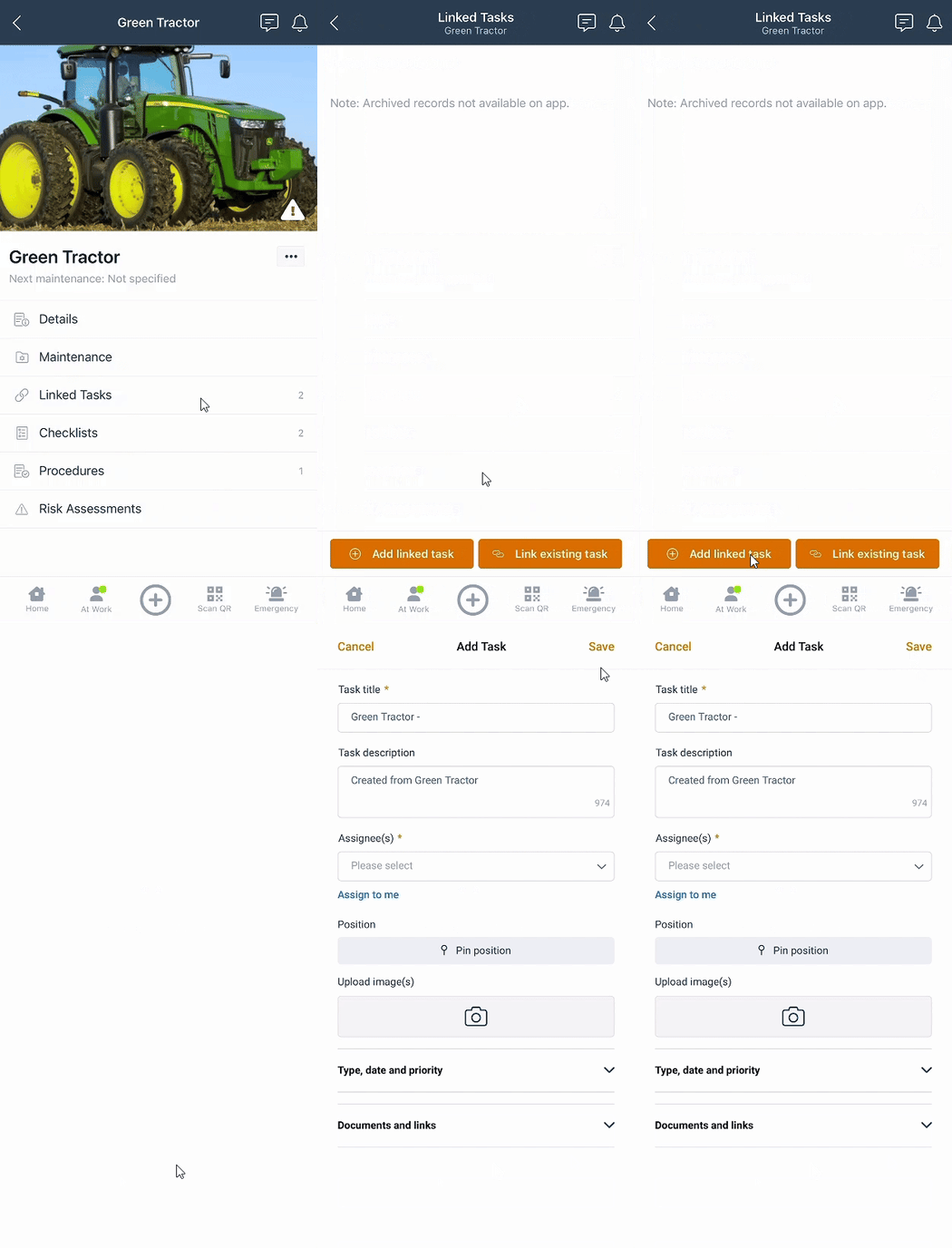
Link a New Task
- Access your Inventory by:
- Tapping the main menu
 and selecting Inventory > Machinery & Equipment, Structures, Tools or Chemicals and select the Inventory item, or
 - Tap QR Code
 and scan the item's QR code.
- Tapping the main menu
- Tap Linked Tasks > Add Linked Task, complete the Task details and tap Save. For more details, see Adding Tasks (App).
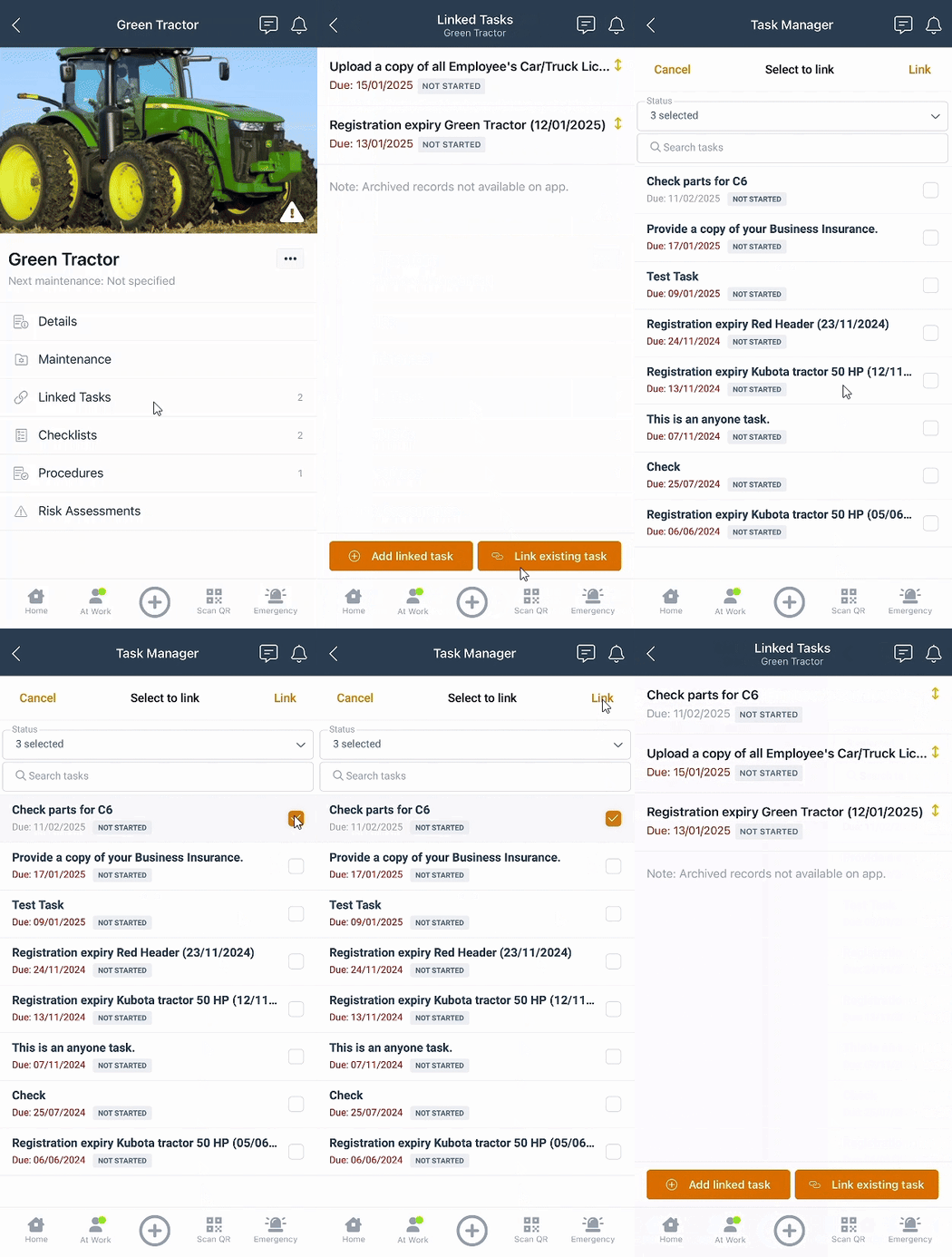
Link an Existing Task
- Access your Inventory by:
- Tapping the main menu and selecting Inventory > Machinery & Equipment, Structures, Tools or Chemicals and select the Inventory item, or
- Tap QR Code and scan the item's QR code.
- Tapping the main menu
- Tap Linked Tasks > Link Existing Task.
- Tick the box beside any Task needed, then click Link.