
Note: Your Access Level may restrict the use of some features.
Hazards can be mapped while using Offline Mode. They will be uploaded the next time the App connects to internet. For more information, see Offline Mode (App).
To add a Hazard on the Desktop, see Adding Hazards or Items.
You can add Hazards and Items for a Location. Staff can add new Hazards and Items, straight from within the App, as they find them.
A Hazard or Item can be added from:
Adding from the Quick Access Menu
- From the Quick Access menu, tap Add
 > Add Hazard.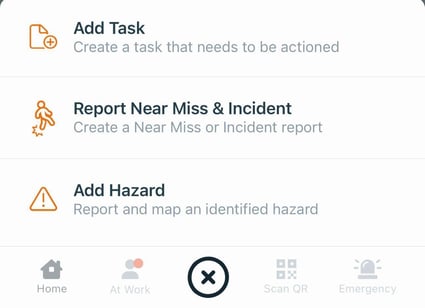
- Select the Location.
- If the User is marked At Work, with Location Services On and within a Location boundary, the App will provide the below options.
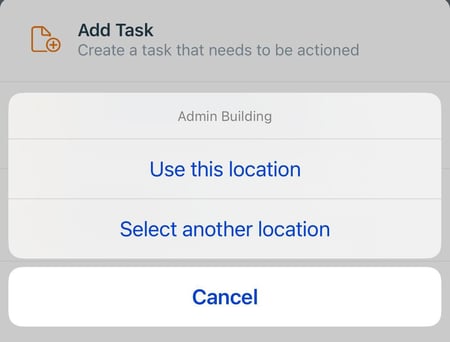
- If the User is marked At Work, with Location Services On and within a Location boundary, the App will provide the below options.
- Complete the details of the item. Provide as much detail as possible.
- Use Position to add the Hazard's position on the Location map.
- If the User is marked At Work, with Location Services On and within the Location boundary, their current position will show as a blue dot on the map.
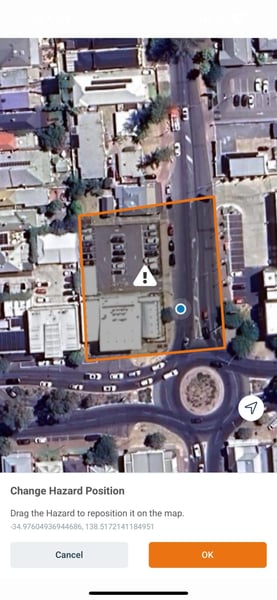
- If the User is marked At Work, with Location Services On and within the Location boundary, their current position will show as a blue dot on the map.
- Use Layer to categorise if it is a Hazard, Structure or other type of item.
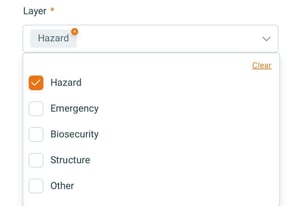
- Use Position to add the Hazard's position on the Location map.
- Tap Save.
Adding from the Location Map
- From the main menu
 , tap Location Map.
 - Select the Location.
- If the User is marked At Work, with Location Services On and within a Location boundary, the App will highlight their Current Location.
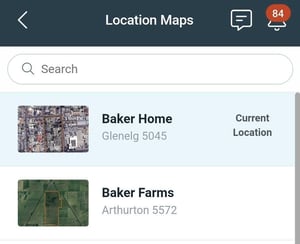
- If the User is marked At Work, with Location Services On and within a Location boundary, the App will highlight their Current Location.
- Tap Add Item and select the Item Type.
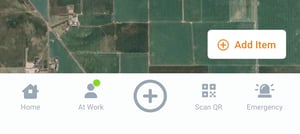

- Complete the details of the item. Provide as much detail as possible.
- Use Position to add the position of the hazard on the Location map.
If the User is marked At Work, with Location Services On and within the Location boundary, their current position will show as a blue dot on the map. - Use Layer to categorise if it is a Hazard, Structure or other type of item.
- Use Position to add the position of the hazard on the Location map.
- Tap Save.