
Note: Your Access Level may restrict the use of some features.
Hazards and Items can be edited while using the App offline. They will be uploaded the next time the App connects to internet. For more information, see Setting to Offline Mode (App).
A Hazard or Item can also be edited, deleted or copied on Desktop. See Editing Hazards or Items.
After a Hazard or Item has been created, it can be:
Editing a Hazard or Item
- From the main menu
 , tap Location Map.
 - Select a Location.
- If the User is marked At Work, with Location Services On and within a Location boundary, the App will highlight their Current Location.
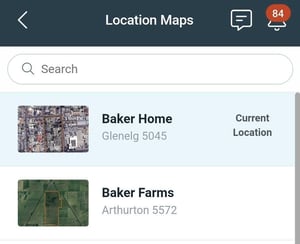
- If the User is marked At Work, with Location Services On and within a Location boundary, the App will highlight their Current Location.
- Select a Hazard or Item.
- List View: tap the Hazard's name.
- Map View: tap the Hazard's icon and tap the Hazard's name.
- If the User is marked At Work, with Location Services On and within the Location boundary, their current position will show as a blue dot on the map.
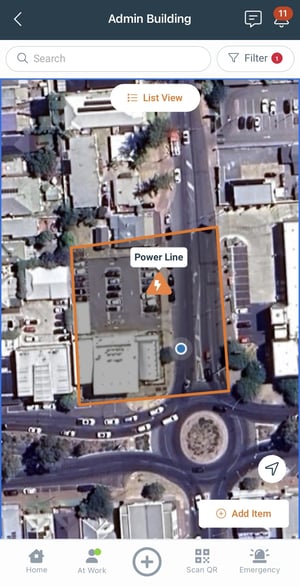
- If the User is marked At Work, with Location Services On and within the Location boundary, their current position will show as a blue dot on the map.
- Tap more options
 > Edit.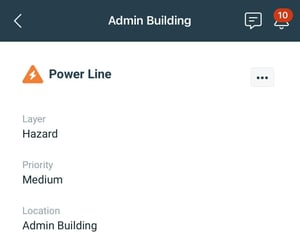
- Make the changes and tap Save.
Deleting a Hazard or Item
If the Hazard no longer exists, use the End Date - rather than deleting. If deleted, there's no history of the Hazard having existed.
- From the main menu , tap Location Map.
- Select a Location.
- If the User is marked At Work, with Location Services On and within a Location boundary, the App will highlight their Current Location.
- If the User is marked At Work, with Location Services On and within a Location boundary, the App will highlight their Current Location.
- Select a Hazard or Item.
- List View: tap the Hazard's name.
- Map View: tap the Hazard's icon and tap the Hazard's name.
- If the User is marked At Work, with Location Services On and within the Location boundary, their current position will show as a blue dot on the map.
- If the User is marked At Work, with Location Services On and within the Location boundary, their current position will show as a blue dot on the map.
- Tap more options > Delete.
- Tap OK to confirm deletion.