
Note: Your Access Level may restrict the use of some features.
This function is only available in a Professional subscription.
Files and Links require connectivity to open.
To attach a procedure see Attaching Procedures to Inventory.
To attach a checklist see Attaching Checklists to Inventory.
- From the left menu, select Inventory > Machinery & Equipment or Structures or Tools or Chemicals.
- Select the inventory item to open
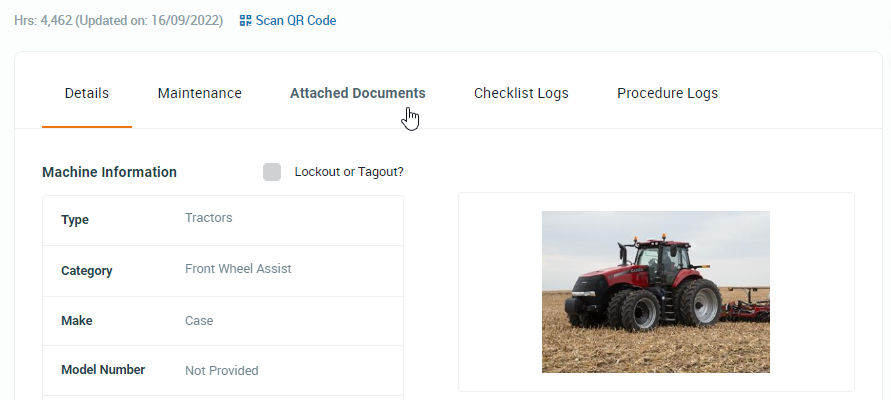
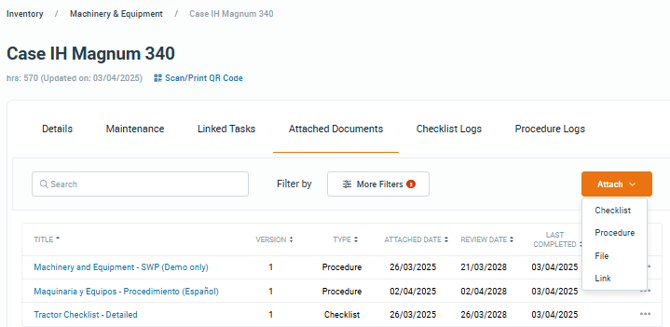
- Select the Attached Documents tab at the top of the inventory view.
- Click the Attach button and select File or Link from the dropdown list.
- To attach a file, select File, add a Title and browse (or drag and drop) a document into the Upload File window, add a Review date (optional) and click Save.
- To attach a link, select Link, add a Title, insert a URL, add a Review date (optional) and click Save.
Note: File types supported are as follows:
| .xls .xlsx .docx .doc |
.jpg .jpeg .png .gif |
.mp3 .mp4 .mov .wmv |
Entering a Review Date will trigger a task reminder 7 days prior.
Removing or Reviewing a File or Link
- From the left menu, select Inventory > Machinery & Equipment or Structures or Tools or Chemicals.
- Select the inventory item to open.
- Select the Attached Documents tab at the top of the inventory view.
- Select more options ••• > Remove or Review.
- Update or remove as required.
- To view deleted files select Previously attached from the Attached Status filter