Note: Your Access Level may restrict the use of some features.
For Desktop, see Viewing Checklist Logs.
Checklists can be reported on from:
- People for an Individual User
- Documents > Checklists for All Users
- Inventory > Checklists for an Inventory Item
Checklist Logs for an Individual User
- From the main menu
 , tap People.
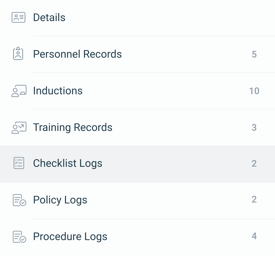
 - Select the user, then select Checklist Logs.
- Tap a log to view the responses.
Checklist Logs for All Users
- From the main menu , tap Documents > Checklists.
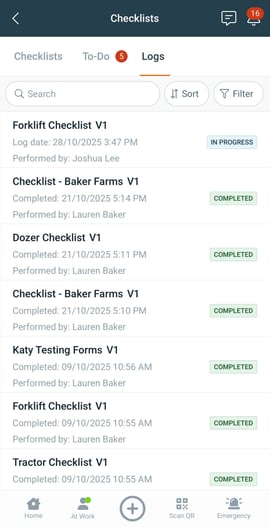
- Tap the Logs tab, and apply filters if needed.
- Tap a log to view the responses.
Checklist Logs for an Inventory Item
- Open the Inventory item:
- Tap the main menu
 Inventory > Machinery & Equipment, Structures, Tools or Chemicals, and tap on the item, or
 - Tap QR Code
 and scan the item's QR code.
- Tap the main menu
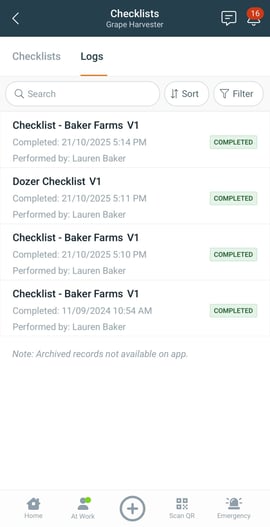
- Tap Checklists > Logs.
- Tap a log to view the responses.