
Note: Your Access Level may restrict the use of some features.
To lockout/tagout on the Desktop, see Lockout/Tagout Inventory.
- Open the Inventory item:
- From the main menu
 , select Inventory > Machinery and Equipment or Structures or Tools and tap the inventory item or
 - Tap QR Code
 and scan the item's QR code.
- From the main menu
- Tap more options ••• > Lockout/Tagout.
- Tap Continue.
Alerts:
- A push notification is sent to all users when an item is locked/tagged out.

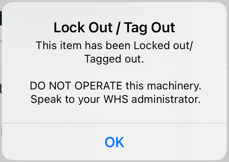
- A warning message will be displayed when the item is accessed from the App.
- The
 icon is applied to the Inventory item, visible on the Desktop and App.