
Note: Your Access Level may restrict the use of some features.
Management Portal users must have access enabled to the site/company where these actions are triggered to receive notifications. See Managing Users (Management Portal) for steps to connect to a site.
For site level notification triggers and who receives them see Notification Overview.
Notifications to Management Portal users can be received in 3 different ways.
- Notification Bell - The bell icon
 that appears in the top menu of the Management Portal on and Desktop.
 - Email - Notifications for Emergency Alerts (Fire and Medical), Near Miss & Incidents and New Hazards trigger an email to Management Portal users connected to the sites where these actions were created.
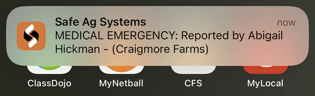
- Push Notification - A mobile alert that notifies you of a new notification. They disappear once viewed. To receive Push Notifications the Management Portal user must be logged in to that individual site where the notification was triggered at the time that the action was triggered.
Management Portal Notification Bell
The notification bell is in the top right corner of a Management Portal Dashboard and shows all notifications that have been triggered at site level for the Management Portal user.
To access notifications, navigate to the top menu and click the notification bell  . The 15 most recent notifications are displayed. For the full page list click View All Notifications.
- The full page list displays the 15 most recent notifications with a Load more feature at the bottom to load 15 more at a time.
- The red number on the notification bell
 highlights any new notifications.
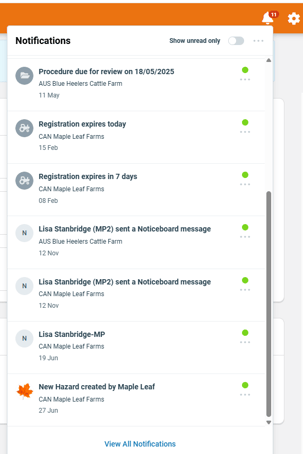
Click any notification to be taken into the action at site level. Clicking a notification will set it to Read.
To Manage an Individual Notification
- Click more options
 on the notification to show the full message, mark it as read or unread, or archive the notification.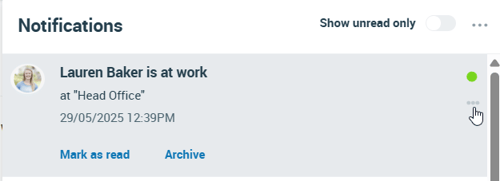
To Manage All Notifications
From the top of the Notifications list:
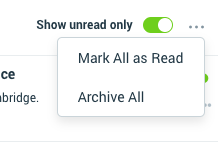
- Select the toggle to filter between unread or all notifications.
- Click more options to mark all Notifications as read or archive all.
Select View All Notifications from the Notification Bell to see all notifications, including archived. The full text will show for Notifications, and the Archived toggled can be used to see old Notifications. 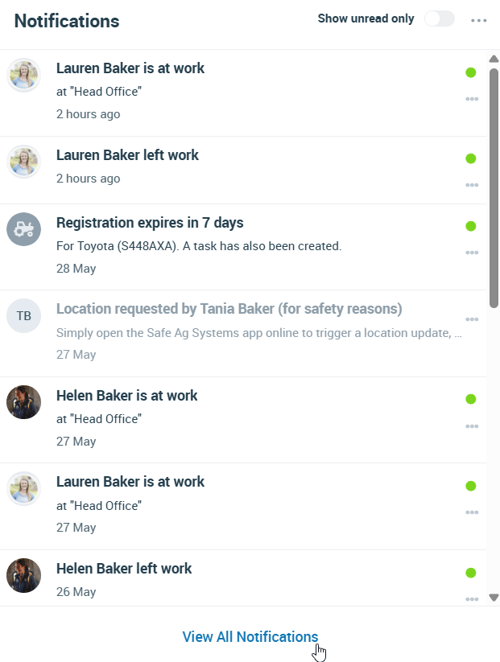
Notification Emails
Emails are triggered to Management Portal users for the following actions:
- A new Near Miss and Incident Report is started
- A new Hazard is added
- A Emergency is triggered (Medical or Fire)