Note: Your Access Level may restrict the use of some features.
For Desktop, see Viewing Procedure Logs.
Procedures can be reported on from:
- People for an Individual User
- Documents > Procedures for All Users
- Inventory > Procedures for an Inventory Item
Procedure Logs for an Individual User
- From the main menu
 , tap People.
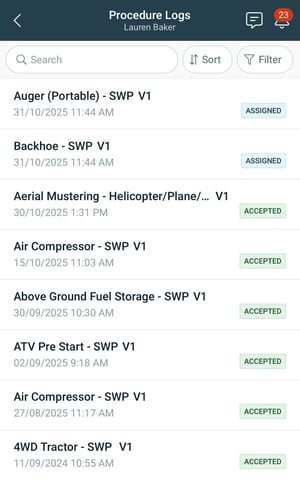
 - Select the user, then select Procedure Logs.
- Use Filters to change the results. The date and time shown will be when it was Assigned or Accepted.
Procedure Logs for All Users
- From the main menu , tap Documents > Procedures.
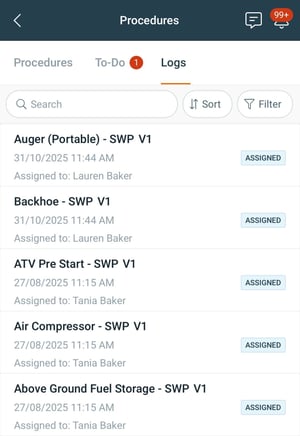
- Tap the Logs tab.
- Use Filters to change the results, or Sort to change how they're displayed. The date and time shown will be when it was Assigned or Accepted.
Procedures Logs for an Inventory Item
- Open the Inventory item:
- Tap the main menu
 Inventory > Machinery & Equipment, Structures, Tools or Chemicals, and tap on the item, or
 - Tap QR Code
 and scan the item's QR code.
- Tap the main menu
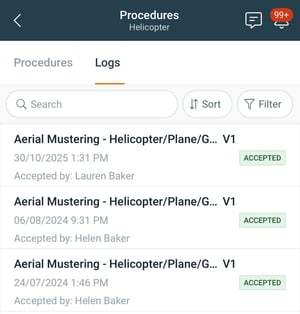
- Tap Procedures > Logs.
- Use Filters to change the results, or Sort to change how they're displayed. The date and time shown will be when it was Accepted.