Note: Your Access Level may restrict the use of some features.
Investigating a Report can only be done on Desktop.
To create a Report, see Reporting a Near Miss or Incident or Reporting a Near Miss or Incident (App).
When a report is created, users will submit the report and provide some key information about the event. After it's submitted, it needs to be investigated by a Business Administrator or Supervisor.
An investigation is crucial to assess anything a business can do to prevent another related incident occurring.
Completing an Investigation
- From the left menu, select Safety Manager > Near Miss and Incident.
- From the report, click more options
 then Resume.
- Complete the Report fields. A field marked * is mandatory. Click Next to move to the next stage. Any information submitted by a User will be shown in the Report.
If action is required as a result of the Incident, a Task can be created within the Report.
Click Add Task and complete the Task fields and Click Save. The task will automatically add basic information of in the Task Description. - Click Complete.
- Only complete a Report if no further action is required, as you will be unable to re-open it to add further details.
Report Stages
- The Essentials - the basic details of the incident.
- Severity - how severe the event was, emergency services involvement and possible damages.
- Individuals - anyone involved in the incident and injury details if an injury occurred.
- Evidence - including images, videos, statements and timelines.
- Take Action - Safe Work reporting and follow up Checklist.
- Sign Off - after the investigation is finished, sign off is needed before completing the Report. This must be signed by at least one Business Administrator or Supervisor.
Updating Category and Classifications
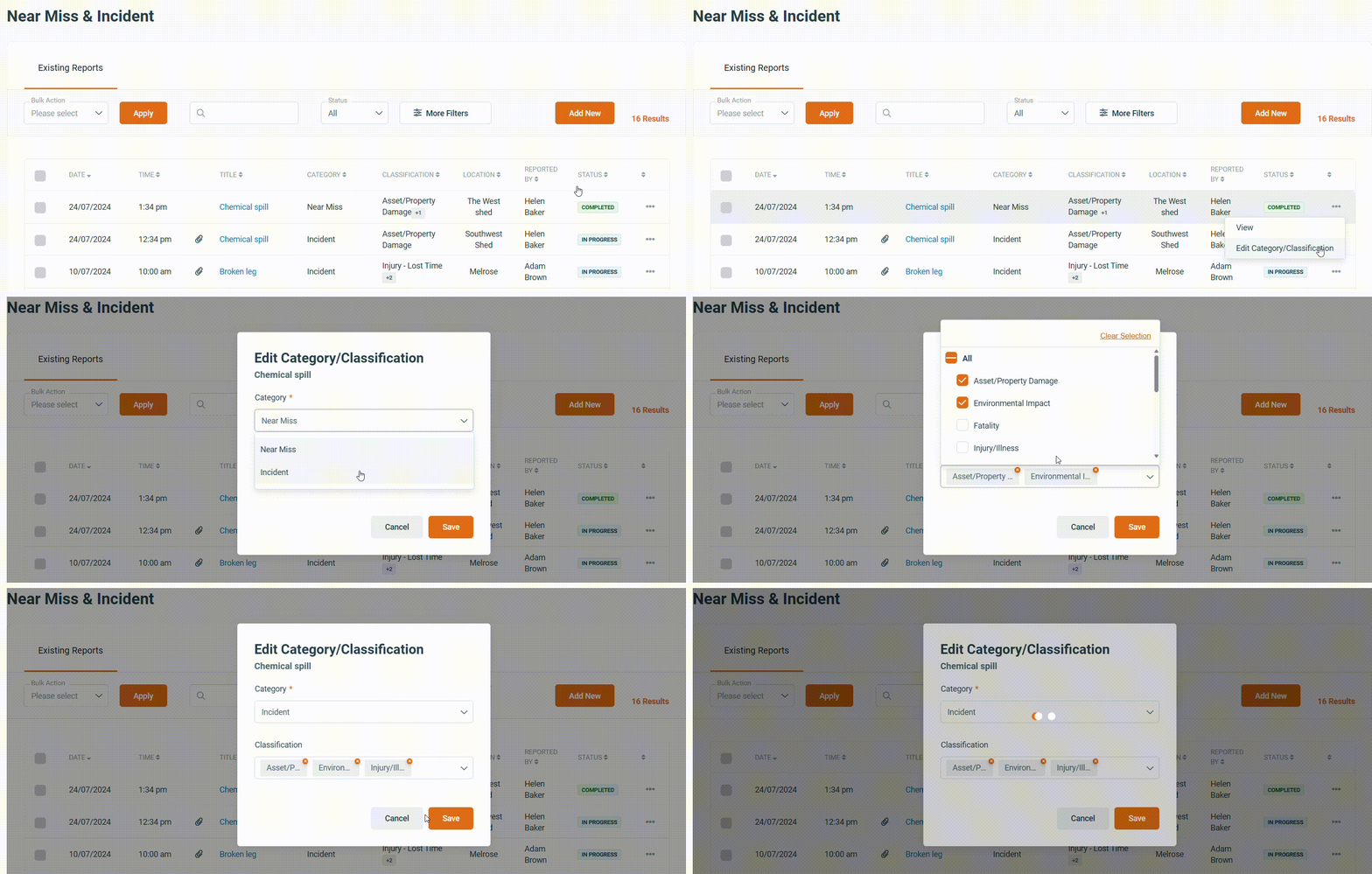
Category and Classifications were added on 17/06/25. All reports created before this date were marked as unspecified, until updated.
All reports after this date have Category as a mandatory field.
Category and Classifications can be added or updated on all Reports, including after they've been completed.
- From the left menu, select Safety Manager > Near Miss and Incident.
- On the report, select more options > Edit Category/Classification.
- Click Save.
Recording Lost Time
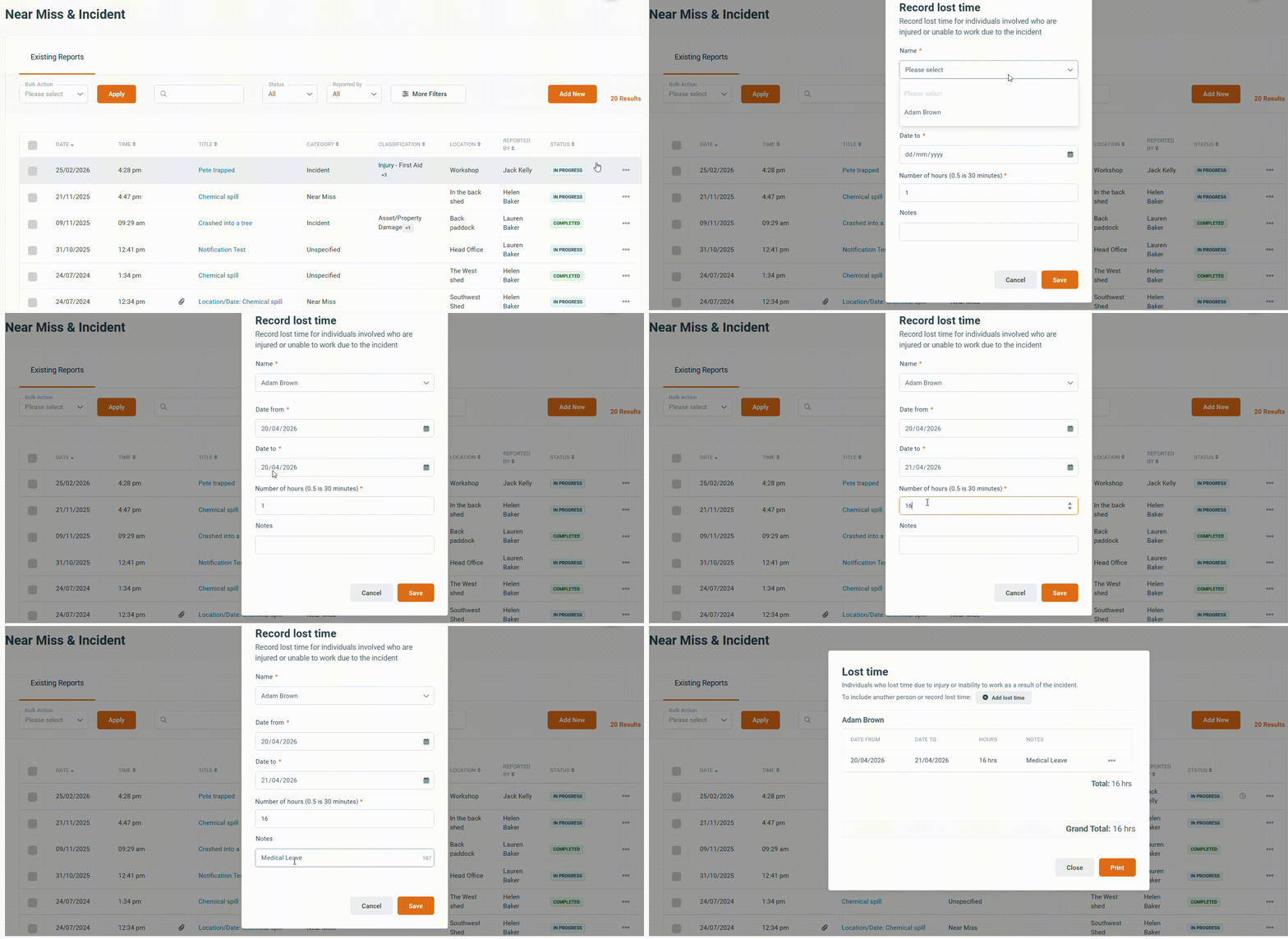
Lost Time can only be recorded for a person listed in the Individuals stage of the report.
Any report with Lost Time recorded will have a clock icon besides Status.
- From the left menu, select Safety Manager > Near Miss and Incident.
- On the report, select more options > Record Lost Time.
- Complete the Name, Date From, Date To and Number of Hours fields. Notes is optional.
- Select Save.
Viewing Lost Time
- From the left menu, select Safety Manager > Near Miss and Incident.
- On the report, select more options > View Lost Time.
- To edit or delete an existing entry, select more options , then edit or delete.
- New records can be added by selecting + Add Lost Time.
- Select Print to generate a PDF that can be printed or downloaded.
- To edit or delete an existing entry, select more options