
Note: Your Access Level may restrict the use of some features.
For Visitor Inductions on Desktop, see Inducting Visitors.
Standard Subscriptions can't induct visitors via QR Code or Email.
Visitor Inductions can be started in several different ways:
Visitor Inductions can also be completed for a group of people:
Visitor Inductions as a Logged In User
A Worker, Supervisor or Business Administrator can Induct a Visitor in the App.
This is the only way a Standard subscription can induct a Visitor.
Inductions can't be assigned offline.
- From the main menu
 , tap Documents > Inductions > Assign Inductions > Visitor.
 - Select the Induction Type from the dropdown list.
- Select an Inductor from the dropdown list.
- Enter the Full Name and Email of the Inductee.
- Click Begin.
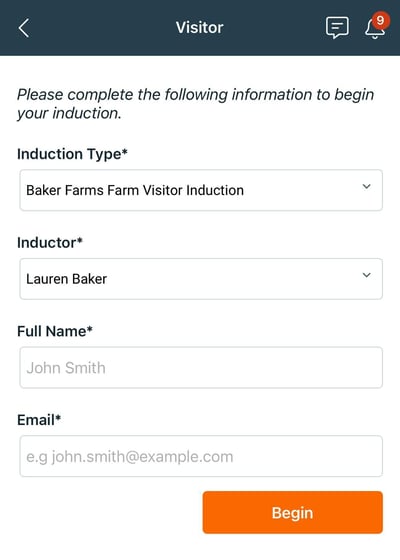
- The Induction can now be completed. Once signed, it will be sent to the Inductor to sign off.
For more information, see Completing Inductions.
If the Induction is not completed, it can't be resumed at a later time and will need to be restarted.
Starting a Visitor Induction via a QR Code
This feature is not available on Standard subscriptions.
Induction QR Codes are not available outside of the Safe Ag Systems App.
A QR Code Poster for the Safe Ag Systems App is available here. This will direct to the right version of the App for the device.
To print the QR code, see Printing Induction QR Codes.
- Open the App and tap Visitor Access, and scan the Induction QR Code.
- Select an Inductor from the Inductor dropdown, and complete the Full Name field.
- Tap Begin.
- The Induction can now be completed. Once signed, it will be sent to the Inductor to sign off.
For more information, see Completing Inductions.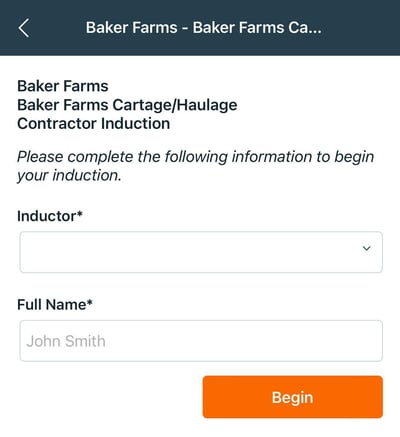
If the Induction is not completed, it can't be resumed at a later time and will need to be restarted.
Completing a Visitor Induction sent via Email
This feature is not available on Standard subscriptions.
To complete a Visitor Induction sent via email, the Visitor must download the Safe Ag Systems App from the App Store or Google Play Store.
A QR Code Poster for the Safe Ag Systems App is available here. This will direct to the right version of the App for the device.
- To start the Induction:
- Open the Safe Ag Systems App and tap Visitor Access. Scan the Induction QR Code from the Induction email, or
- Open the Induction email on the same device the Safe Ag Systems App is installed on. Click Start Induction. This will open the App and start the Induction.
- Select an Inductor from the Inductor dropdown. Complete the Full Name field with your details.
- If unsure about who the Inductor is, speak to the business.
- If unsure about who the Inductor is, speak to the business.
- Tap Begin.
- The Induction can now be completed. Once signed, it will be sent to the Inductor to sign off.
For more information, see Completing Inductions.
Group Visitor Inductions
A Worker, Supervisor or Business Administrator can Induct a Visitor in the App.
This is the only way a Standard subscription can induct a Visitor.
Inductions can't be assigned offline.
A group of Visitors can be inducted using the Safe Ag Systems App.
- From the main menu , tap Documents > Inductions > Assign Inductions > Visitor.
- Select the Induction Type from the dropdown list.
- Select an Inductor from the dropdown list.
- Under Full Name, enter the name of the person in charge or the Business Name and Contact Email.
- Click Begin
- Select the first Category to open a statement. An introductory slide with instructions will be shown first.
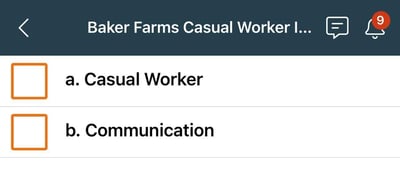
- Read each statement and tap Agree or Disagree.
- If a blue icon is visible, there are additional documents, images or links to be reviewed. Tap the blue icon and review the content. Agree and Disagree can't be selected until the content is reviewed.
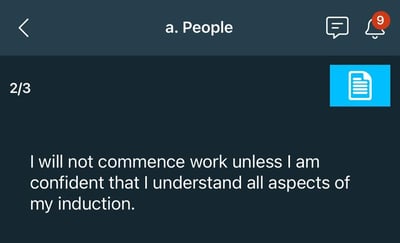
- If a blue icon is visible, there are additional documents, images or links to be reviewed. Tap the blue icon and review the content. Agree and Disagree can't be selected until the content is reviewed.
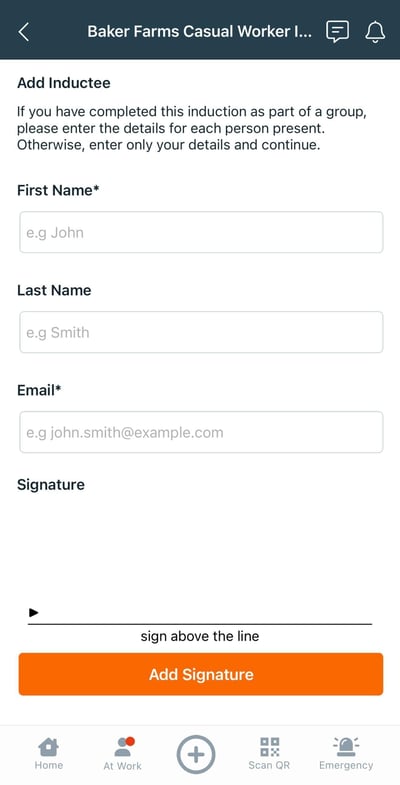
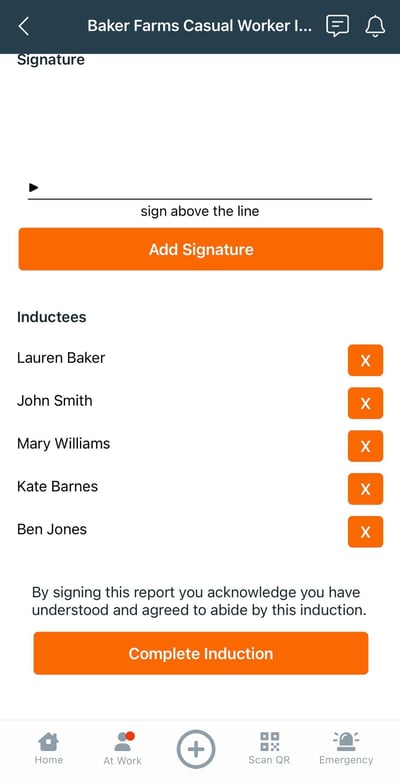
- When complete, have each Inductee enter their name and signature. Tap Add Signature to add additional Inductee fields.
- Once all names are listed under Inductees, tap Complete Induction, to submit to the Inductor for sign off.
 |
 |